How to Optimize Your Smartphone for the Best AR Experience
Get the most out of your Glassear headset by configuring your mobile device for maximum performance and fluidity.
Experience Glassear
Secure your slot in our Early Access Program and build the future of AR.
Join the Pioneers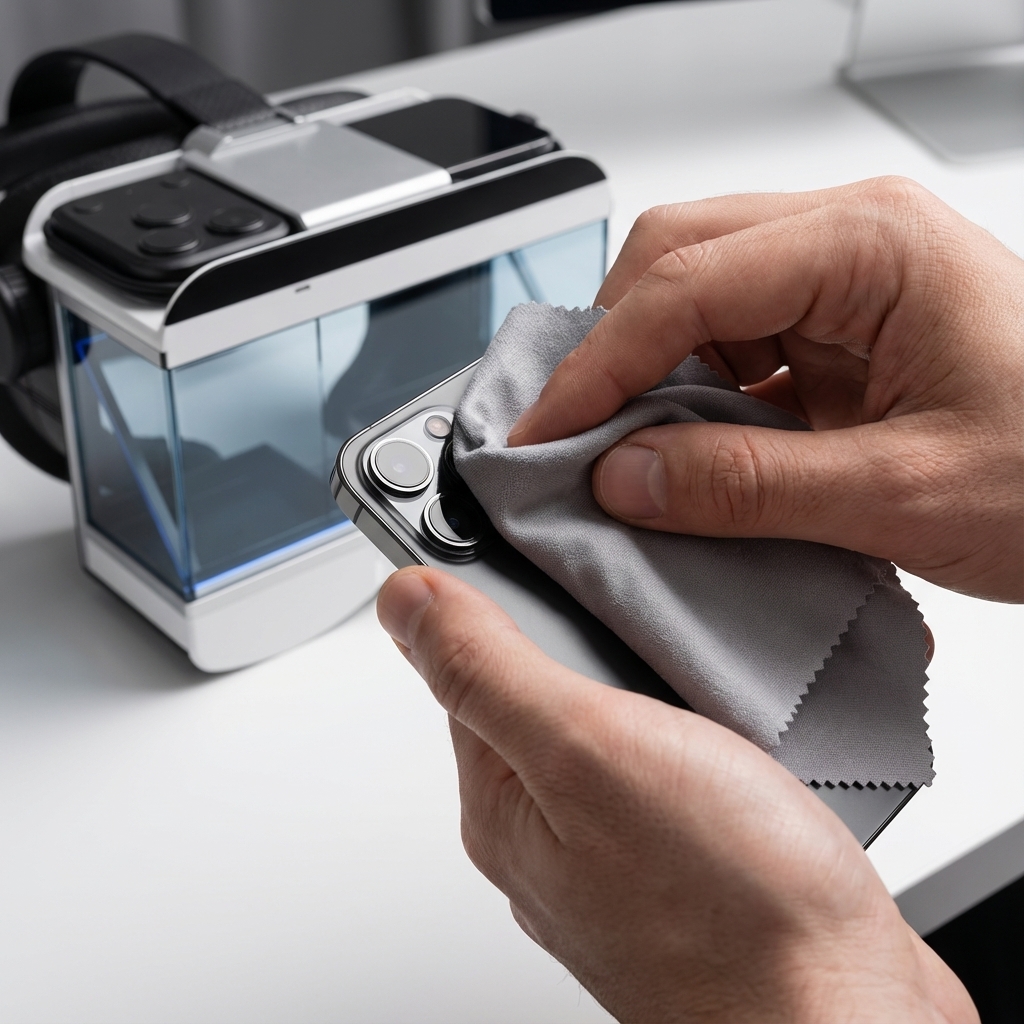
How to Optimize Your Smartphone for the Best AR Experience
When using Glassear, your smartphone is responsible for performing all the mathematical and graphical calculations to project augmented reality. Although modern mobiles are incredibly powerful, following these tips will ensure you the smoothest and most stable experience possible.
1. Free Up RAM Memory
Before starting your AR session, it is recommended to close applications that you are not using in the background.
- Why: Social apps or heavy games consume memory resources that the Glassear app might need to process graphics in real time.
- Tip: Use your mobile’s task manager to “Close all” before starting.
2. Disable Battery Saver Mode
Battery saving usually limits processor (CPU) power and reduces the screen refresh rate.
- Why: For smooth AR we need the processor to work at its maximum capacity and without latency.
- Tip: Make sure your mobile is in “Performance” mode or at least without battery saving activated.
3. Keep Your Device Cool
Intensive AR processing can heat up the smartphone. A very hot mobile will lower its performance to protect itself (thermal throttling).
- Tip: If you are going to use Glassear for long sessions, try not to charge the mobile at the same time, as charging generates additional heat.
4. Clean the Camera Lens
Glassear uses your smartphone’s camera for environment tracking.
- Why: A fingerprint smudge on the lens can cause the positioning of AR objects to be imprecise or “jumpy”.
- Tip: Use a microfiber cloth to clean the rear lens before placing the mobile in the headset.
5. Update Your Software
Make sure you have the latest version of your operating system (iOS or Android) and the Glassear application installed.
- Benefit: Updates often include graphics driver improvements and consumption optimizations that directly impact the visual quality of AR.
Conclusion
By following these simple steps, you will transform your smartphone into the ultimate AR workstation. Glassear is designed to be efficient, but giving your mobile a little “breathing room” always translates into better graphics and a more instantaneous response.
Don’t have your Glassear yet? Discover how your smartphone can become your new window to the digital world.